Odoo Integration
Connect your Odoo accounting system to Manza and push your contacts, invoices, and journal entries straight into Odoo's ledger — no manual re-keying. About 5 minutes if Odoo is already set up.
What you'll need#
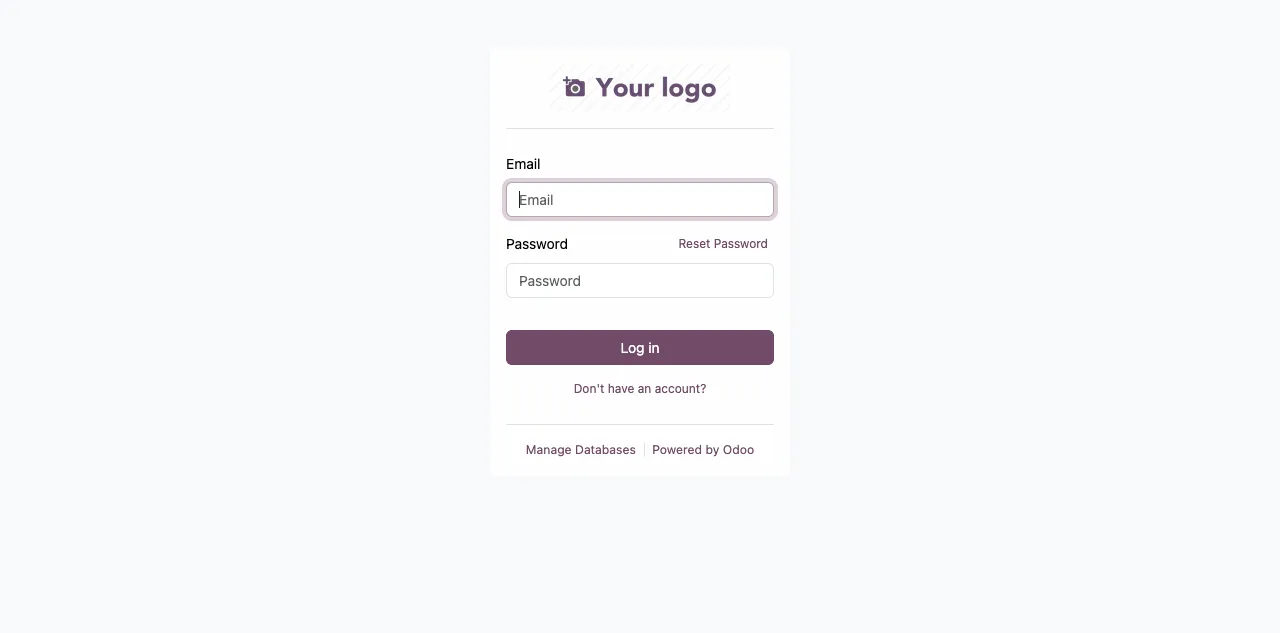
Before you start, log in to your Odoo instance in a browser and have these ready:
| Value | What it is |
|---|---|
| Instance URL | The address of your Odoo, e.g. https://your-company.odoo.com (HTTPS required) |
| Database name | The Odoo database to connect (Odoo Online: usually your subdomain) |
| Login | The email/login you sign in to Odoo with |
| API key | A secret token you generate in Odoo (step 2) |
Prerequisites in Odoo#
The integration writes to Odoo's accounting models res.partner and account.move, so your database needs:
- The Accounting (or Invoicing) app installed.
- A chart of accounts loaded. For Moroccan companies, install the Morocco - Accounting (l10n_ma) localization for the Moroccan chart and standard VAT taxes.
A valid HTTPS certificate is required#
Manza only talks to Odoo over HTTPS, and the certificate must be valid and trusted — not self-signed, not expired, issued for the exact hostname. This applies to Odoo 16, 17, and 18, and to inbound webhooks too.
Odoo Online (*.odoo.com) already has a valid certificate — skip to the API key step.
Self-hosted Odoo often runs on plain HTTP or a self-signed certificate. Install a free Let's Encrypt certificate behind a reverse proxy:
sudo apt install certbot python3-certbot-nginx
sudo certbot --nginx -d erp.your-company.com
Generate an API key#
Manza connects with an API key rather than your password:
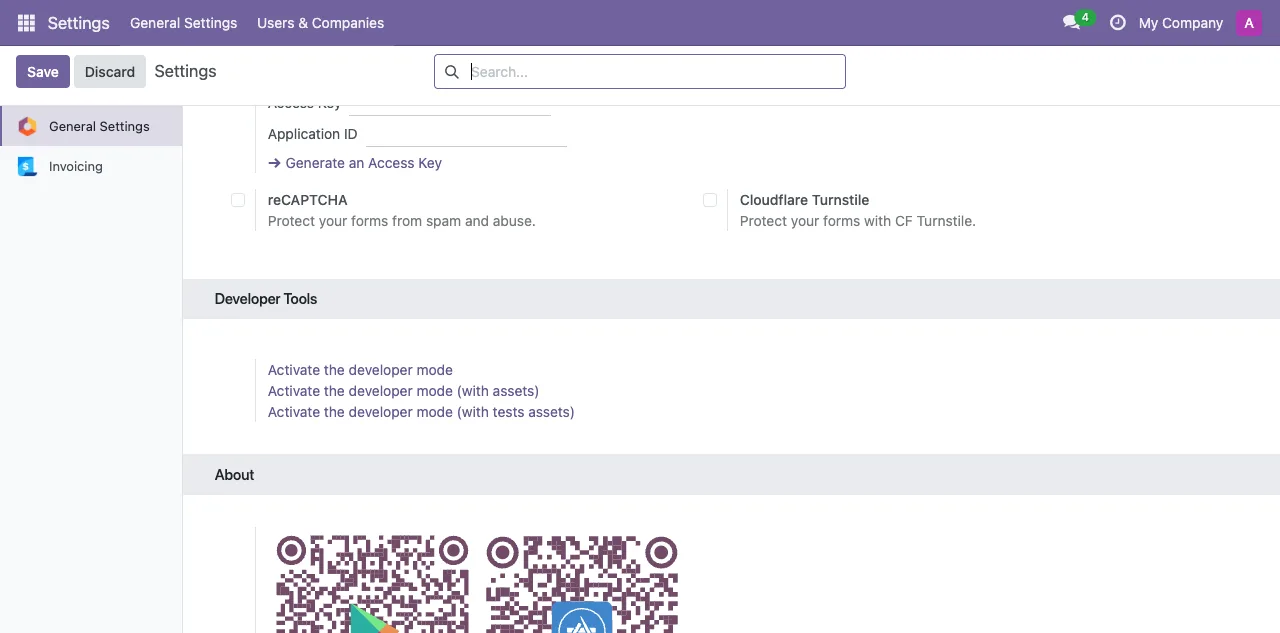
- Turn on developer mode (Settings → Developer Tools → Activate the developer mode).
- Open your avatar → My Profile (or Preferences) → the Account Security tab.
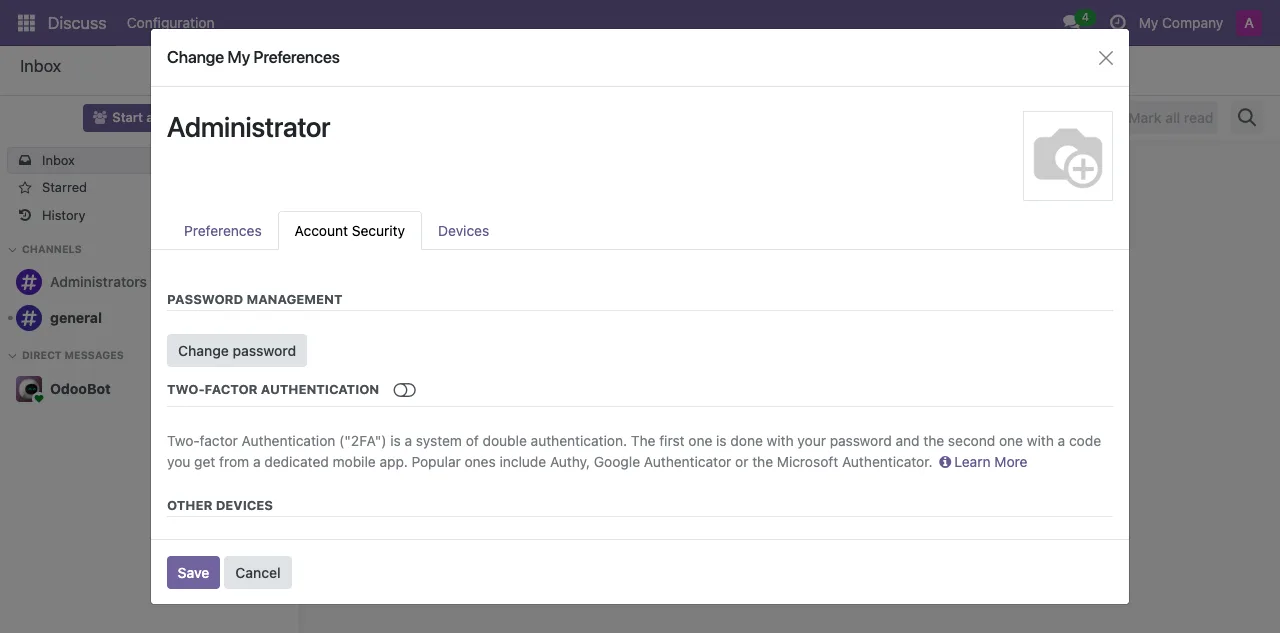
- In API Keys, click New API Key, name it (e.g. “Manza”), and generate it.
- Copy the key immediately — Odoo shows it only once.
Connect in Manza#
Go to Settings → Integrations → Odoo and fill in the form: Deployment (Odoo Online vs Self-hosted), Instance URL (https://…), Database name, Login, and API key. Click Connect — Manza makes a live test call to verify the credentials before saving, then fetches your chart of accounts and tax rates.
Map your accounts#
Before invoices and journal entries can be pushed, match Manza's concepts to your own chart of accounts: a sales revenue account, a clearing account (journal entries only), and a tax code per VAT rate you invoice with. Open the integration's settings page — the Account mapping card lists everything that still needs a selection, with the options taken straight from your synced chart of accounts.
Until the mapping is complete, pushes are held back safely — nothing is ever posted to a guessed account.
Optional: inbound webhooks#
Optional — the integration re-syncs on a schedule without it. Webhooks make that refresh instant. Available on Odoo 17/18 (Odoo 16 has no Automation-Rule webhooks; it falls back to periodic re-syncing).
Create an Automation Rule (On Save) on both the Chart of Accounts account.account and Taxes account.tax models, each with a Webhook action pointing at https://<your-zazu-host>/webhooks/odoo and an X-Manza-Webhook-Secret header.
{
  "database": "your-company",
  "host": "your-company.odoo.com",
  "model": "account.account",
  "record_id": 42,
  "event": "write"
}
Verifying the webhook sync#
Any save on the Chart of Accounts fires the accounts rule, so the simplest way to force a refresh from Odoo is to open any account under Accounting → Configuration → Chart of Accounts, make a no-op edit (e.g. re-save the name), and save. Odoo POSTs to the webhook URL and Manza re-syncs your accounts and taxes within seconds.
After you trigger a change, the integration page's last synced time should update within a few seconds. If it doesn't, work through these in order — they cover almost every case:
- Wrong or missing secret header. The header name must be exactly
X-Manza-Webhook-Secret(or the legacy X-Zazu-Webhook-Secret, still accepted) and the value must match the secret on the integration page character-for-character. A wrong secret is rejected with 401 and nothing syncs. - Payload missing database/host. If you left Odoo's default payload in place (just
_id/_model), Manza can't match the event to your connection and rejects it with 401. Use the custom payload shown above. - host doesn't match. It must be the bare hostname, identical to the host in your Instance URL — no scheme, no port, no trailing slash.
- Certificate problem (self-hosted). The webhook may reach Manza, but receiving it makes Manza re-fetch your accounts and taxes from Odoo — and that call rejects expired, self-signed, or hostname-mismatched certificates (see the certificate requirement above), so nothing updates.
- Only one rule set up. Tax changes need the
account.taxrule; account changes need theaccount.accountrule. Confirm both exist.
What gets pushed#
| Manza record | Becomes in Odoo |
|---|---|
| Customer | res.partner (a contact) |
| Invoice | account.move (a customer invoice, in draft) |
| Posting | account.move (a journal entry) |
Each push is idempotent — Manza tags every record it creates with a deterministic identifier (ir.model.data xmlid), so a retry never creates a duplicate in your books.
Troubleshooting#
“Odoo accounting is not installed.” Your database doesn't have the Accounting app / chart of accounts. Install Accounting and the Morocco - Accounting (l10n_ma) localization, then reconnect.
“Incompatible companies” when pushing an invoice. Your Odoo has multiple companies and the mapped account/tax belongs to a different one than the connected user's active company. Switch the connected user's active company to the one that owns your Moroccan chart, then re-sync.
“Could not connect” / the connection test fails. Check that the URL is HTTPS and reachable, the database name is exactly right (case-sensitive), and the API key was copied without extra spaces. Regenerate the key if in doubt. On a self-hosted server, the most common cause is the TLS certificate.
“Could not connect” on a self-hosted server (certificate error). Manza rejects self-signed, expired, or hostname-mismatched certificates. If your browser shows a certificate warning on the Odoo URL, Manza won't connect either — install a free, trusted Let's Encrypt certificate (see the certificate requirement above), then reconnect. This is the same certificate that lets inbound webhooks work.
The API key stopped working. API keys are tied to a specific database. If your Odoo database was restored, renamed, or recreated, generate a fresh key.
Good to know#
- Odoo versions: the integration is tested against Odoo 16, 17, and 18. It uses Odoo's stable JSON-RPC endpoint, which works across all supported versions.
- Cloud and self-hosted are both supported — the only difference is the URL and database you enter.
- Security: your API key is stored encrypted, every outbound call is logged, and you can disconnect (which clears the stored credentials) at any time from the integration page.